Navigate your workspace
Learn how to efficiently navigate and find content across your workspace using Relio's powerful search and navigation features.
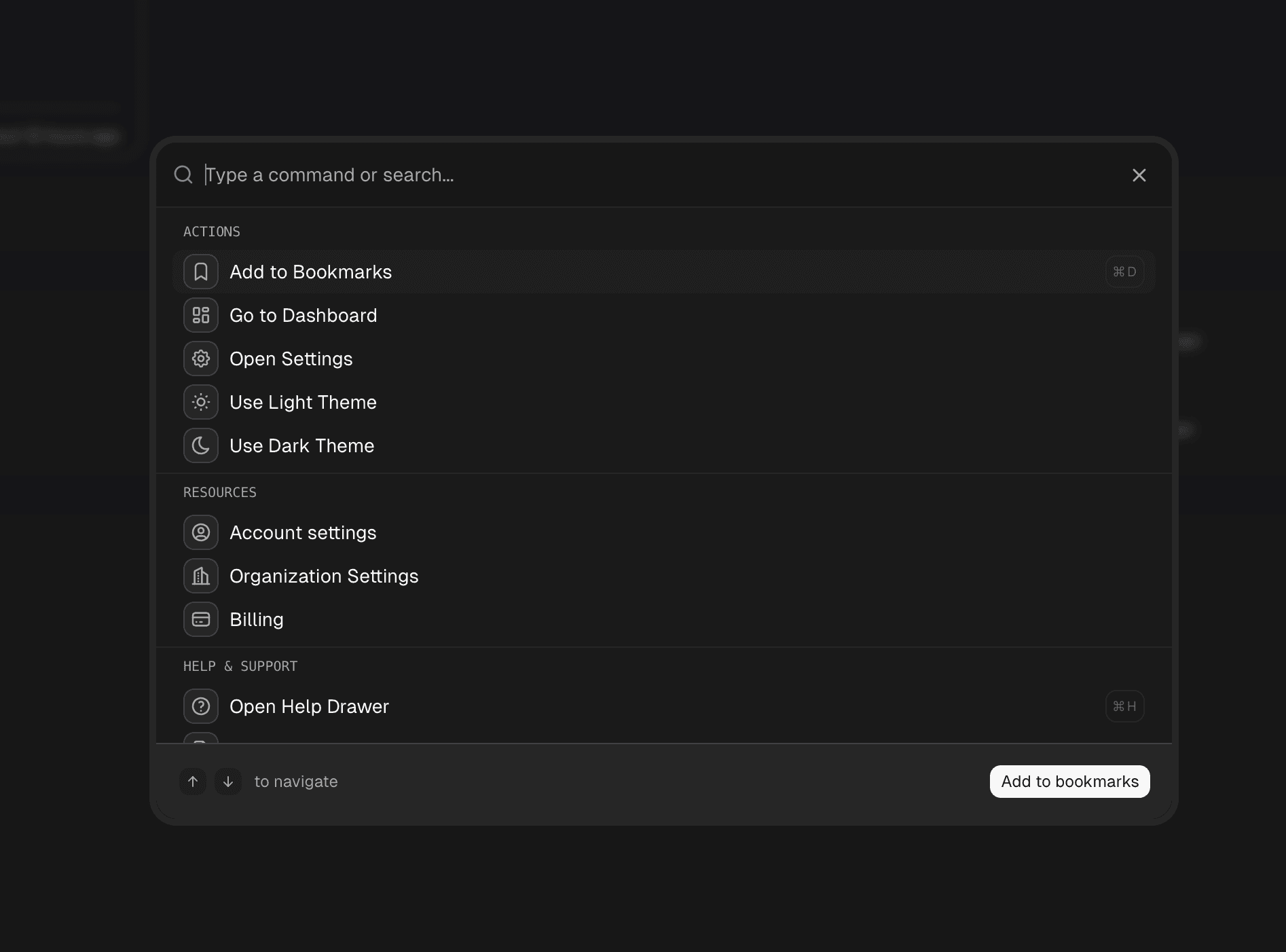
Quick Navigation with Command Menu
The fastest way to navigate your workspace is using the Command Menu. Press ⌘+K (Mac) or Ctrl+K (Windows/Linux) to open it instantly.
Command Menu Features
- Quick Commands: Access frequently used actions like creating new tasks, notes, or navigating to different sections
- Global Search: Search across all your tasks and notes in real-time
- Keyboard Navigation: Navigate entirely with your keyboard for maximum efficiency
- Smart Previews: See detailed information about items before opening them
Global Search
The global search functionality allows you to find any task or note across your entire workspace instantly.
How to Search
- Press
⌘+Kto open the Command Menu - Start typing your search query (minimum 3 characters)
- Results appear in real-time as you type
- Use arrow keys to navigate through results
- Press Enter to open the selected item
What You Can Search
- Task titles and descriptions: Find tasks by their title or detailed descriptions
- Note titles and content: Search through note titles and their rich text content
- Mixed results: Get both tasks and notes in a unified search experience
Search Features
- Real-time results: See results instantly as you type
- Smart filtering: Results are automatically sorted by relevance and recency
- Rich previews: See detailed information including:
- Creation and modification dates
- Assignees and creators
- Task status and priority
- Note content previews
- Visual badges for easy identification
Search Result Details
When you select a search result, you'll see comprehensive details in the preview panel:
For Tasks
- Title and description
- Current status (To Do, In Progress, Completed)
- Priority level (Low, Medium, High, Urgent)
- Assigned team member with avatar
- Creation and update dates
- Quick actions: Edit task directly from search
For Notes
- Title and content preview
- Note icon and cover image (if set)
- Publication status (Published/Draft)
- Creation and update dates
- Creator information
- Quick actions: Open note directly
Advanced Navigation Tips
Keyboard Shortcuts
⌘+K/Ctrl+K: Open Command Menu↑/↓: Navigate through resultsEnter: Open selected itemEsc: Close Command Menu
Search Best Practices
- Use specific keywords: Include unique words from titles or content
- Keep it short: Start with 3-4 characters, then refine
- Use task status: Include status words like "completed" or "in progress"
- Search by assignee: Include team member names to find their tasks
Organization Context
Search results are automatically filtered to your active organization. This ensures you only see content relevant to your current workspace context.
Quick Actions
From Search Results
- Tasks: Edit directly from search without opening the full task view
- Notes: Open in the note editor to continue where you left off
- Navigation: Jump directly to the item's location in your workspace
Common Workflows
- Finding recent work: Search for recently created or updated items
- Locating assignments: Search by assignee name to find specific team member's tasks
- Content discovery: Browse through notes by searching for topics or keywords
- Status tracking: Find tasks by their current status
Tips for Maximum Efficiency
- Bookmark frequently accessed items: Use the favorites system for quick access
- Develop search habits: Create consistent naming patterns for easier discovery
- Use the preview: Review details in the preview panel before opening items
- Combine with other navigation: Use search alongside the sidebar for comprehensive workspace management
The global search and navigation system is designed to make finding your content effortless, whether you're looking for a specific task, browsing through notes, or trying to locate something you worked on recently.
How is this guide?