Notes & Documentation
Transform the way you capture ideas, create documentation, and collaborate with others using Relio's powerful notes system. Whether you're writing meeting notes, creating project documentation, or journaling your thoughts, you now have all the tools you need for professional content creation.

Getting Started with Notes
Notes in Relio are designed to be your go-to solution for capturing and organizing information. From quick thoughts to comprehensive documentation, the notes system adapts to your workflow.
Creating Your First Note
- Navigate to Notes: Click on the "Notes" section in your sidebar or main navigation
- Create New Note: Click the "New Note" button or use the keyboard shortcut
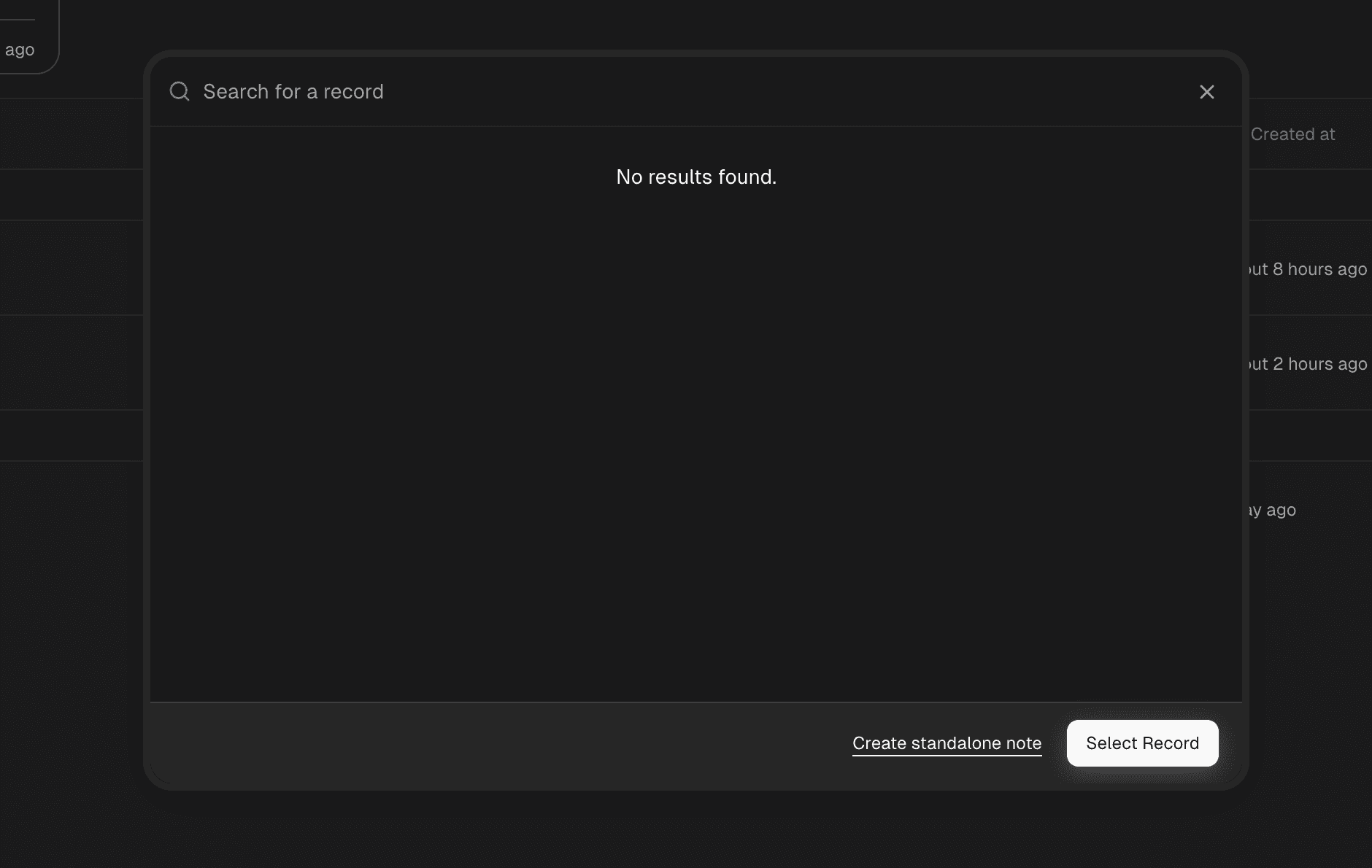
n - Select a Record: Select a record to attach the note to or create a personal note
- Start Writing: Begin typing in the rich text editor
Understanding the Notes Interface
The notes interface is designed for clarity and efficiency:
- Notes Grid/List View: Toggle between visual grid cards and compact list view
- Search and Filter: Quickly find notes using the search bar and filtering options
- Favorites Sidebar: Access your most important notes instantly
- View Options: Switch between different layouts to match your workflow
[IMAGE PLACEHOLDER: Split view showing both grid and list layouts of the notes interface]
Rich Text Editing
The Editor Toolbar
Relio's rich text editor provides professional-grade formatting options:
Text Formatting:
- Bold, Italic, and
Strikethroughtext - Headers (H1, H2, H3) for document structure
- Bullet points and numbered lists
- Block quotes for highlighting important information
- Code blocks for technical documentation
[IMAGE PLACEHOLDER: Close-up of the editor toolbar showing all formatting options]
Advanced Features:
- Tables for organizing data
- Task lists with checkboxes
- Links to external resources
- Text alignment options
- Font styling and colors
Working with Headers and Structure
Use headers to create well-structured documents:
# Main Title (H1)
## Section Title (H2)
### Subsection (H3)
Headers help organize your content and make it easier to navigate, especially in longer documents.
[IMAGE PLACEHOLDER: Example of a well-structured note with multiple header levels]
Creating Lists and Tasks
Bullet Lists: Perfect for quick notes and brainstorming
- Use the bullet list button in the toolbar
- Press Enter to create new list items
- Press Tab to indent and create sub-items
Numbered Lists: Great for step-by-step instructions
- Click the numbered list button
- Add your items in sequence
- The numbers automatically update
Task Lists: Keep track of action items
- Incomplete task
- Completed task
[IMAGE PLACEHOLDER: Examples of different list types in the editor]
Images and Media
Adding Images to Notes
Relio makes it easy to include visual content in your notes:
- Upload from Computer: Drag and drop images directly into the editor
- Image Cropping: Use the built-in cropping tool to perfect your images
- Automatic Optimization: Images are automatically resized for optimal performance
[IMAGE PLACEHOLDER: Demonstration of drag-and-drop image upload process]
Image Management Best Practices
- File Formats: Supports JPEG, PNG, WebP, and GIF formats
- Size Optimization: Large images are automatically compressed
- Alt Text: Add descriptions for accessibility
- Positioning: Images can be positioned within your text flow
[IMAGE PLACEHOLDER: Image cropping interface in action]
Organization and Favorites
Using the Favorites System
Keep your most important notes easily accessible:
- Star a Note: Click the star icon on any note to add it to favorites
- Favorites Sidebar: Access favorited notes from the sidebar
- Organize in Folders: Create custom folders for different projects or topics
- Drag and Drop: Easily move favorites between folders
[IMAGE PLACEHOLDER: Favorites sidebar showing organized folders and notes]
Folder Organization
Create a logical structure for your notes:
By Project:
- Client Projects
- Internal Projects
- Research & Development
By Type:
- Meeting Notes
- Documentation
- Ideas & Brainstorming
By Priority:
- Urgent
- Important
- Reference
[IMAGE PLACEHOLDER: Example folder structure in the favorites sidebar]
Sharing and Collaboration
Public vs Private Notes
Relio gives you complete control over note visibility:
Private Notes (Default):
- Only you can see and edit
- Perfect for personal notes and drafts
- Complete privacy and security
Public Notes:
- Can be shared with anyone via a link
- Perfect for documentation and collaboration
- Viewers can see but not edit (unless given permissions)
[IMAGE PLACEHOLDER: Privacy settings interface showing public/private toggle]
Sharing Best Practices
When to Make Notes Public:
- Team documentation
- Process guides
- Project updates
- Knowledge sharing
When to Keep Notes Private:
- Personal thoughts and ideas
- Confidential information
- Work-in-progress content
- Sensitive client data
Collaboration Features
Real-time Viewing: Multiple people can view public notes simultaneously Version History: Track changes and updates over time Access Control: Manage who can view your shared notes Link Sharing: Share notes with a simple, secure link
[IMAGE PLACEHOLDER: Share dialog showing link sharing options]
Advanced Features
Emojis and Visual Elements
Make your notes more engaging and expressive:
- Emoji Picker: Use the built-in emoji picker to add visual flair
- Quick Shortcuts: Type
:smile:for quick emoji insertion - Visual Hierarchy: Use emojis to categorize and highlight content
- Professional Use: Even in business contexts, strategic emoji use can improve readability
[IMAGE PLACEHOLDER: Emoji picker interface and examples of emoji usage in notes]
Search and Discovery
Find your content quickly with powerful search features:
Global Search: Search across all your notes from the main interface Filter Options: Filter by date, favorites, public/private status Tag Support: Use hashtags to categorize and find related content Recent Activity: Quick access to recently viewed and edited notes
[IMAGE PLACEHOLDER: Search interface showing filters and results]
Keyboard Shortcuts
Boost your productivity with these essential shortcuts:
Text Formatting:
Cmd/Ctrl + B: Bold textCmd/Ctrl + I: Italic textCmd/Ctrl + U: Underline text
Navigation:
Cmd/Ctrl + N: New noteCmd/Ctrl + S: Save (auto-saves, but good habit)Cmd/Ctrl + F: Search within note
List Management:
Tab: Indent list itemShift + Tab: Outdent list itemEnter: New list item
[IMAGE PLACEHOLDER: Keyboard shortcuts reference card]
Tips and Best Practices
Note-Taking Strategies
Meeting Notes:
- Start with date, attendees, and agenda
- Use bullet points for action items
- Highlight decisions and next steps
- Include relevant links and references
Documentation:
- Use clear headers for navigation
- Include step-by-step instructions
- Add screenshots and examples
- Keep it updated and current
Brainstorming:
- Don't worry about organization initially
- Use bullet points and free-form text
- Add emojis for visual categorization
- Review and organize later
[IMAGE PLACEHOLDER: Examples of different note types - meeting notes, documentation, brainstorming]
Content Organization
Naming Conventions:
- Use descriptive, searchable titles
- Include dates for time-sensitive content
- Add project prefixes for easy grouping
- Keep titles concise but informative
Regular Maintenance:
- Review and archive old notes
- Update outdated information
- Reorganize favorites as projects evolve
- Clean up unused drafts
Performance Tips
For Large Notes:
- Break very long content into multiple notes
- Use headers to create clear sections
- Consider linking between related notes
- Regular saves prevent data loss
Image Optimization:
- Crop images before uploading when possible
- Use appropriate image sizes for content
- Consider image placement for readability
- Alt text improves accessibility
[IMAGE PLACEHOLDER: Example of a well-organized large document with clear sections]
Troubleshooting Common Issues
Editor Issues
Text Formatting Not Working:
- Ensure you've selected the text first
- Check if you're in the right editing mode
- Refresh the page if formatting toolbar is unresponsive
Images Not Uploading:
- Check file size (max 10MB per image)
- Ensure supported format (JPEG, PNG, WebP, GIF)
- Verify internet connection
- Try refreshing and uploading again
Organization Problems
Notes Not Appearing in Favorites:
- Check if the note is properly starred
- Verify you're looking in the correct folder
- Try refreshing the favorites sidebar
Search Not Finding Notes:
- Check spelling and try different keywords
- Ensure the note isn't in a different organization
- Try searching within specific filters
[IMAGE PLACEHOLDER: Troubleshooting interface showing common error messages and solutions]
Getting Help
If you encounter issues or need assistance:
- Check Documentation: Review this guide for solutions
- Community Support: Join our community forums for user tips
- Contact Support: Reach out to our support team for technical issues
- Feature Requests: Submit suggestions for new features
Integration with Relio
Notes and Tasks
Notes integrate seamlessly with other Relio features:
Task References: Link notes to specific tasks and projects Meeting Notes: Create notes directly from calendar events Client Documentation: Attach notes to contact and deal records Team Collaboration: Share notes within organization workspaces
[IMAGE PLACEHOLDER: Examples of notes integrated with tasks and other Relio features]
Workflow Integration
Daily Workflow:
- Start with daily note for planning
- Create meeting notes for all calls
- Document decisions and action items
- Review and organize at day's end
Project Management:
- Project overview notes with timelines
- Regular status update documentation
- Issue tracking and resolution notes
- Post-project retrospectives
Data Security
Your notes are protected with enterprise-grade security:
- Encryption: All data encrypted in transit and at rest
- Access Control: Granular permissions for shared content
- Backup: Regular automated backups ensure data safety
- Privacy: Private notes remain completely confidential
Quick Reference
Essential Actions
- Create Note: Click "New Note" or
Cmd/Ctrl + N - Save Note: Auto-saves, manual save with
Cmd/Ctrl + S - Star Favorite: Click star icon on any note
- Share Public: Toggle public/private in note settings
- Add Image: Drag and drop or click image button
Formatting Shortcuts
- Bold:
Cmd/Ctrl + B - Italic:
Cmd/Ctrl + I - Header:
#for H1,##for H2,###for H3 - List:
*or-for bullets,1.for numbers - Task:
- [ ]for checkboxes
[IMAGE PLACEHOLDER: Quick reference card showing all essential shortcuts and actions]
Need more help? Visit our community forums or contact support for personalized assistance.
How is this guide?